User profile photo

The simulation training platform is not only a training platform for doctors, but also a powerful specialized social network for discussing clinical cases and sharing experience between doctors. Therefore, setting up your own profile photo and profile cover photo is an integral part of setting up a personal user profile, which is important for further convenient communication with colleagues. First, you need to log in with your login and password.
Log in to your profile by clicking on the avatar in the top drop-down menu.
Profile photo
To add a profile photo, click on the profile portrait image. Then click “Select file” and select the image on your device.
After uploading the image, select the active area of the image you want to see as an avatar – profile photo. And then click “Crop Photo”. If you successfully add a profile photo, you will see a green bar indicating that your new profile photo has been successfully uploaded.
To make sure that your profile photo is displayed correctly, click “View my profile”.
The profile photo is now also displayed in the top bar of the site next to your name.
You can delete a profile photo at any time by clicking on it and by selecting “Delete”. You can also take a picture of yourself with your device’s webcam. Click “Capture” and save the image. You can train several times. Remember to give your device permission to capture images.
Cover image
You can add a profile cover image from the “Edit Profile” page or by viewing a personal profile.
Click “Edit Cover Photo” and “Select file” and select the desired image on your device, preferably at least 1950 px wide and 450 px high. If you successfully upload the cover photo, you will see a green line with a message. You can delete the cover photo at any time and upload more.
To move the cover image, left-click and move the image so that you are satisfied with the active visible area of the cover image. Save changes. Profile photos and profile cover images will appear in your profile and help you connect with colleagues to communicate.
But that’s not all. The “ClinCaseQuest” simulation training platform is an international platform for doctors from all over the world. We must be ready to build international communication with colleagues. Therefore, you can visit the Ukrainian-language and Russian-language platforms and add your profile photos and covers.
Now you are ready for international communication in the “ClinCaseQuest” simulation training platform!
Register on our website right now to have access to more learning materials!
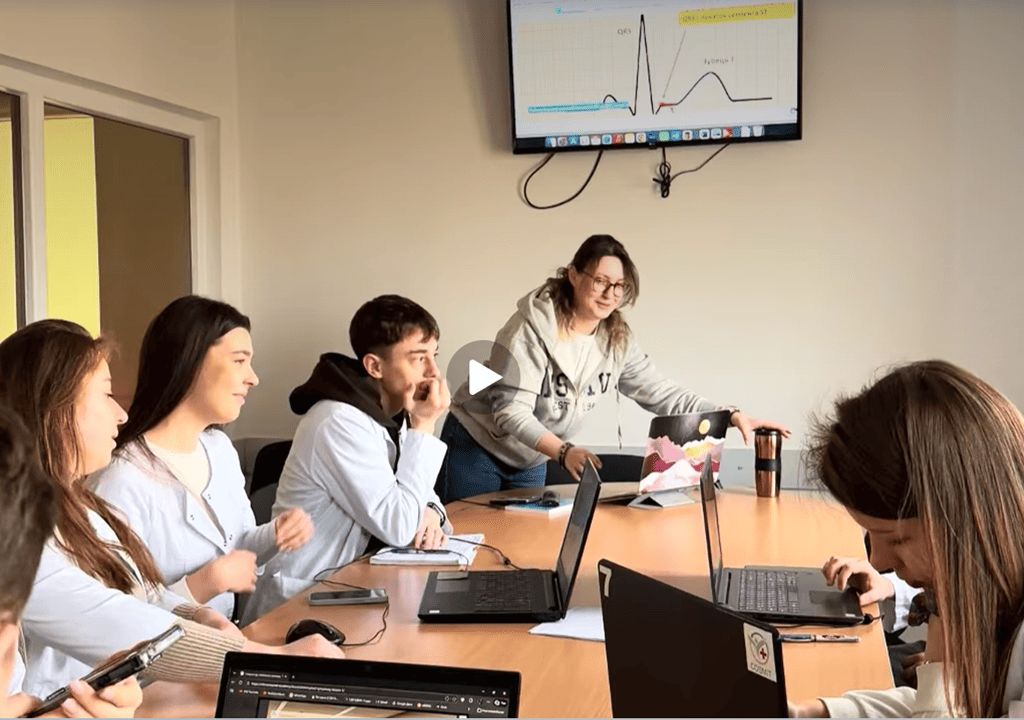
Simulation-Based Medical Education: BSMU Students in ClinCaseQuest Simulations (Video)
Simulation-based medical education is a key component of modern medical training. This video demonstrates how…
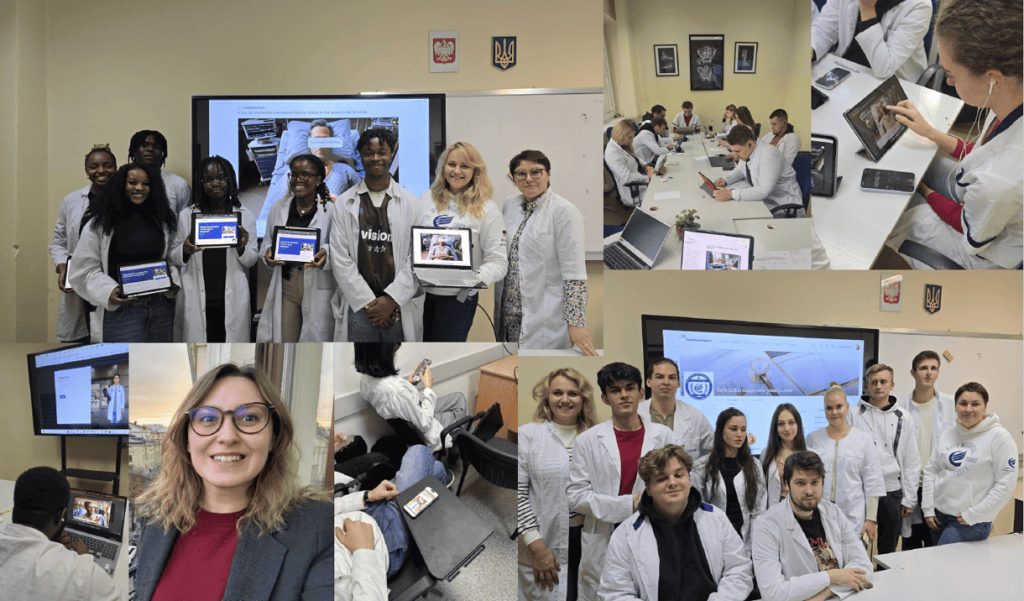
Three Research Directions Emerging from the ClinCaseQuest Simulation Study
ClinCaseQuest research reveals three key directions shaping medical education: psychological safety, clinical reasoning analysis, and…
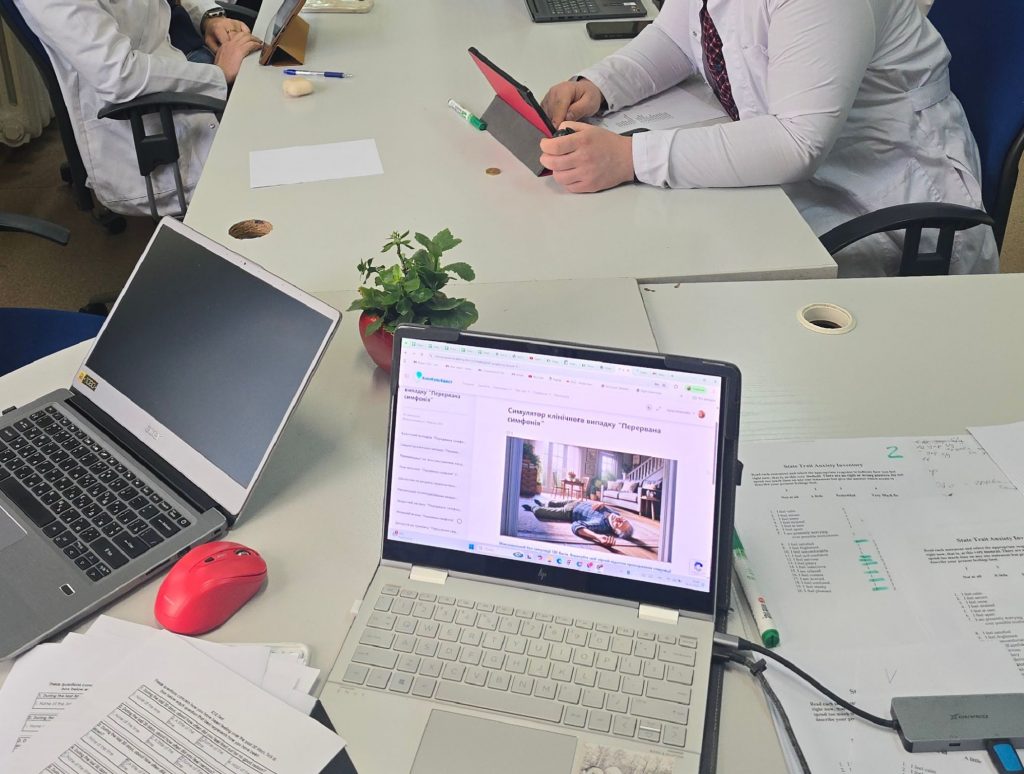
Defragmented Debriefing Model as a Tool for Psychological Safety in Simulation Training
At the 6th International Scientific and Practical Conference “Medical Simulation: A Look into the Future”,…

Attempt-Based Analysis: A New Paradigm for Assessing Clinical Reasoning in Simulation
ClinCaseQuest is proud to highlight the presentation of Tetiana Antofiichuk, MD, PhD, at the international…
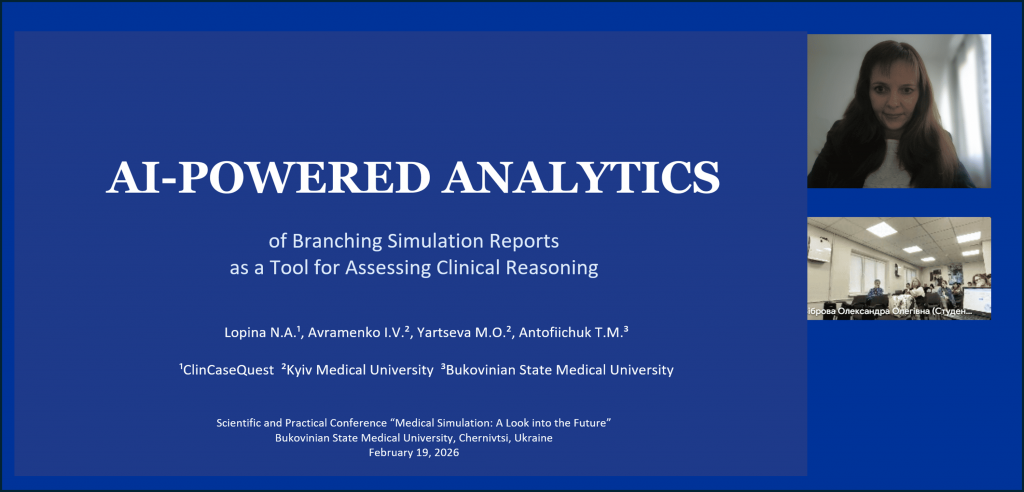
ClinCaseQuest presented the first experience of analyzing branching simulation logs based on artificial intelligence at the “Medical Simulation: A Look into the Future” Conference
ClinCaseQuest is pleased to share our participation in the scientific and practical conference “Medical Simulation:…

AI-Driven Patient Simulator – Quick Feedback
🗣️ We Value Your Feedback Thank you for your interest in the AI-Driven Patient Simulator!…